Release notes · ChromeOS Monitoring · Dashboard · Linux Client · Mac Client · Release Notes · Windows Client
Monitoring Policies: Control Plugin Alerts Fleet-Wide
Today’s dashboard update adds Monitoring Policies: a named, reusable answer to the question “how should this plugin notify us?”, applied to as many computers as you like.
No agent update is required. This is a server-side dashboard feature, and nothing changes until you apply a Policy. Every computer starts with no Policy, which behaves exactly as Watchman Monitoring always has.
The problem this solves
Until now, deciding not to hear about a plugin was a per-machine job. If your team has settled on “we do not chase Time Machine on unattended servers” the only way to express that was to visit the machines, one at a time, and keep visiting the new ones as they arrived.
A Policy is that decision written down once. Apply it to two hundred computers, change your mind later, and every one of them follows.
What a Policy contains
A Policy is a list of the plugins for one platform, with two checkboxes each:
- Email / Ticket covers the notification you already get: a PSA ticket if you have an integration activated, otherwise a warning or alert email. Your existing PSA and email settings still decide which of the two carries it.
- Webhook covers delivery to webhook endpoints subscribed to specific events.
Both are on for every plugin by default, so a brand new Policy changes nothing until you clear a box. A Policy governs notification only. The plugin still runs, and its result still shows in the dashboard, in reports, and in the API. Silencing SMART Status does not mean you stop knowing a disk is failing. It means you stopped being paged about it.
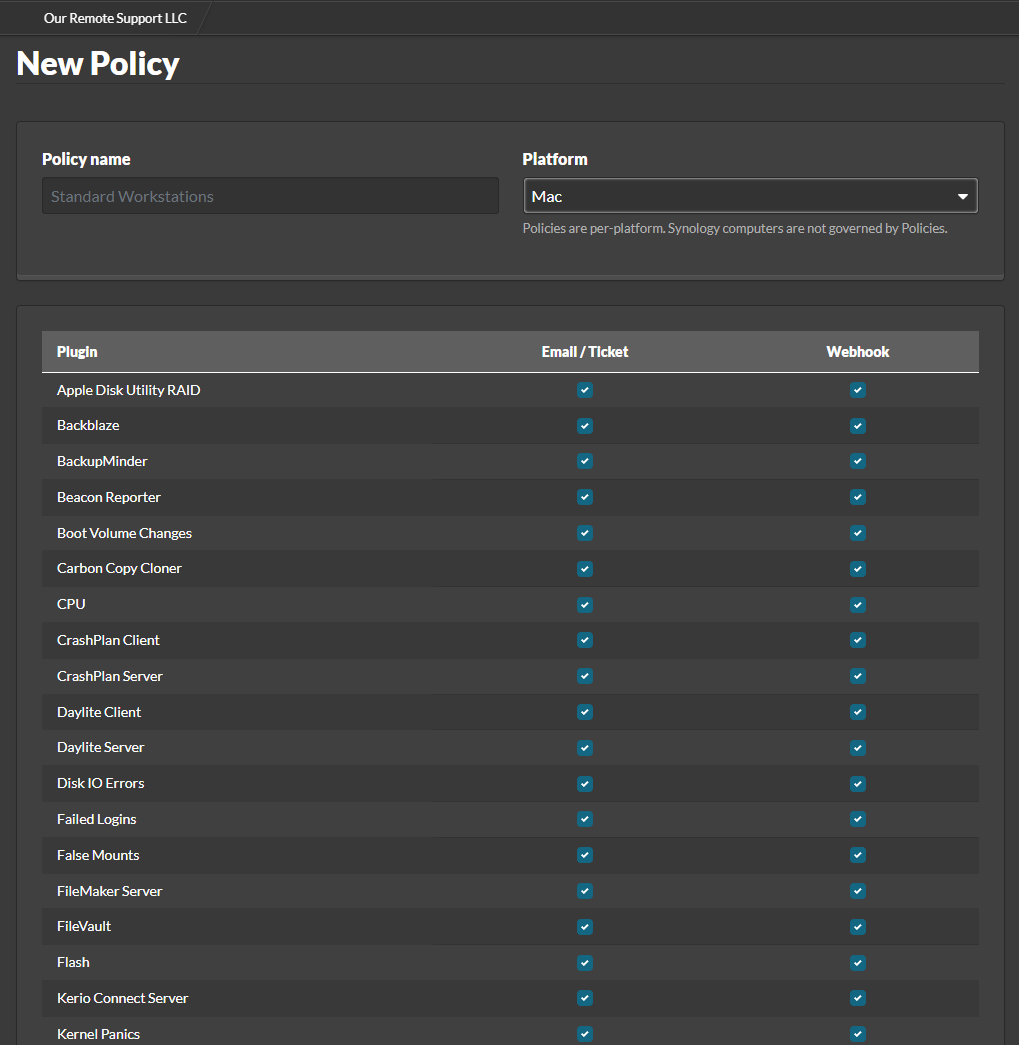
Policies are per platform. A Policy is Mac, Windows, Linux, or ChromeOS, chosen at creation, and it can only govern the plugins that platform actually ships. Synology units are not governed by Policies.
Applying one
Three ways, depending on what you are holding:
- One computer. The Computer Overview now has a Policy selector. Pick one, click Apply.
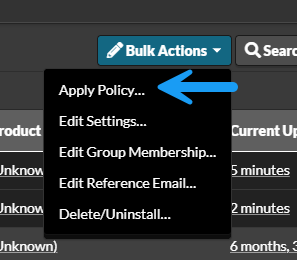
- Many computers. Select them on the Computers page or a Group’s Computers tab, then Bulk Actions > Apply Policy. The dialog breaks your selection down by platform before you commit, since a Mac Policy leaves the Windows machines in the selection untouched.
- New computers, automatically. A Group can hold one default Policy per platform, on its new Policies tab. That default is written onto a computer the first time it reports in.
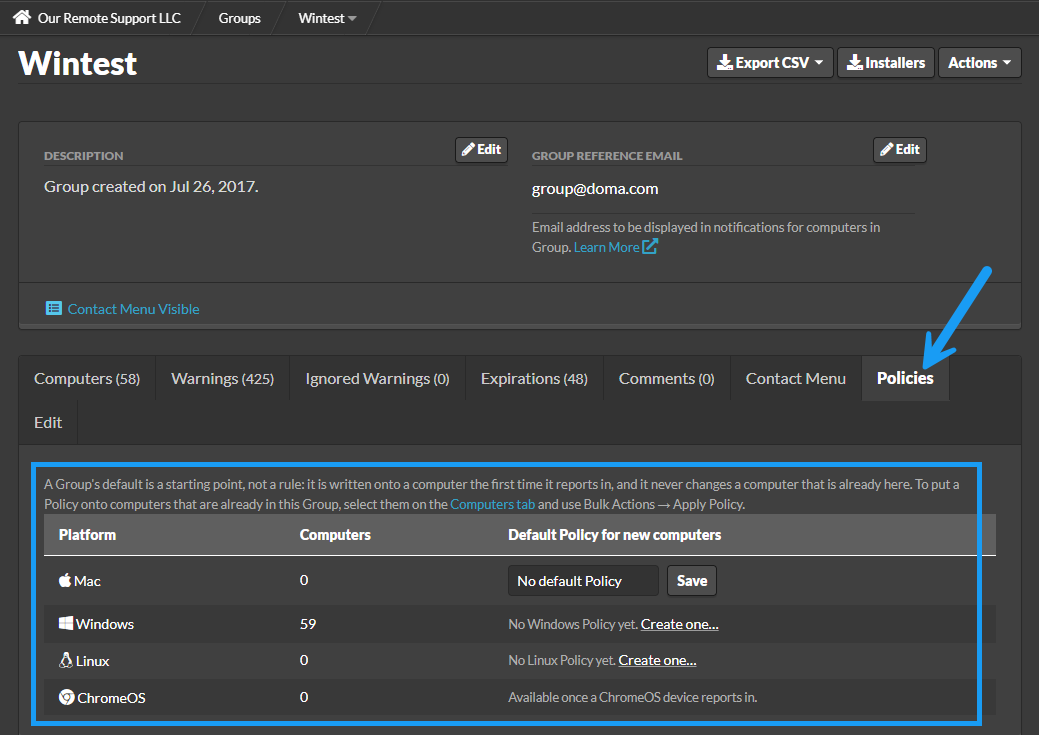
A Group default is a starting point, not a rule. It never reaches back and changes computers already in the Group, and a computer keeps its Policy when it moves elsewhere. If you want a Policy on machines that are already there, select them and apply it. That is a deliberate line: a change to a Group setting should not silently rewrite how a fleet alerts.
Silenced by Policy, or muted on this computer
Muting has not changed and is still the right tool for one machine having one bad week. What is new is that a quiet plugin now says which kind of quiet it is. Plugin rows carry either Silenced by Policy, meaning every computer on that Policy is quiet on this plugin by design, or Muted on this computer, meaning the Policy would notify but this one machine is muted.

A plugin already silenced by its Policy no longer offers a mute option, because there would be nothing to silence. Clearing an existing mute is always available, since that mute may predate the Policy.
Known limits
- Webhook endpoints set to “All events” ignore Policies. That mode is an audit stream and delivers everything, by design. A Policy curates endpoints subscribed to specific events.
- Custom plugins are not listed in the Policy editor, and keep notifying as they do today.
- OK and Informational results are not governed, because they never notified in the first place.
- ChromeOS appears as a Policy platform once a ChromeOS device has reported in.
What’s next
This is just V1 of Policies. We have already had folks ask for the ability to Enable/Disable Plugins, as well as configure Plugins. We plan to add those – so stay tuned!
Let us know if you have any questions or requests,
Ian, Garrett & Allen